Fill in a scanned form: no printer, no detours
A form that only exists on paper or as a scan does not have to be printed, filled in by hand and scanned again: photograph or scan it, open the file in the browser editor and place text, ticks and your signature exactly where they belong with a click. You download the result as a clean PDF. With PDeF everything happens locally in the browser, with no upload to a server.
1. Scan or photograph the form
Use a scanner or simply your phone camera (the Notes app on iPhone and Google Drive on Android have a built-in scan function that straightens pages automatically). Save the result as a PDF; a JPG photo can be converted to a PDF first.
2. Open the scan in the editor
Drag the file into the PDeF editor. The scan is shown like any other PDF; with Ctrl and the mouse wheel you zoom in close enough to hit even small lines precisely.
3. Fill the lines with a click
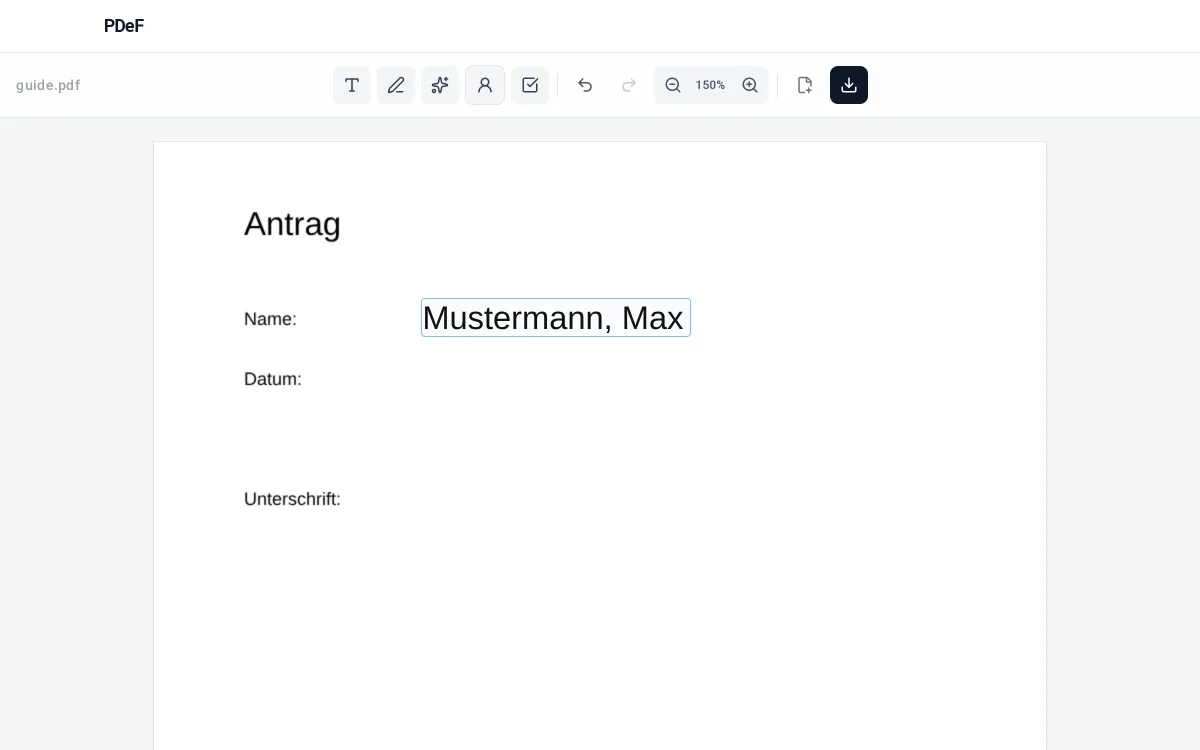
Pick the text tool and click into each line of the form: a field appears and you type straight away. The font size adapts to the line height automatically, even in tight table cells. Ticks are placed with the checkbox tool.
4. Sign and save
Sign with a drawn signature, a photo of your signature, or via QR code from your phone. Then download the filled PDF and email it, upload it or print it.
Tips
- When photographing, watch out for good light and a dark background, then the text stays easy to read.
- If you need the form regularly, save the filled PDF: next time you open it as a template and only change what is current.
Werbung
Frequently asked questions
Is a phone photo enough instead of a scan?
Yes, as long as the text is legible. Scan functions in notes apps straighten the page automatically and usually give the better result.
Why can I not type directly into the fields of a scan?
A scan is just an image with no interactive fields. That is why in the editor you place your own text fields over it, exactly where the entry belongs.
Does the quality get worse when saving?
No. The editor places your entries over the original; the image itself is not recompressed.
Does it work with multi-page scans?
Yes. All pages are shown one below the other, fields can be placed on every page and even moved between pages.
Can I remove a field I placed wrongly?
Yes. Click the field and delete it with the cross icon, or move it to the right spot. The undo button also reverses the last step.
Does filling in change the original file?
No. The editor puts your entries on an extra layer over the scanned image; the original is not recompressed or overwritten. A new, filled PDF is only created on download.
Free, no account, nothing uploaded to a server
Fill a PDF now