Fill in a PDF: free, no account, straight in your browser
Filling in a PDF form works without Adobe, without an installation and without an account: you open the file in a free browser editor, click where the text should go, type it and download the finished PDF. With PDeF this happens entirely inside your browser, your file is never uploaded to a server. It works with scanned forms that have no interactive fields, and with official forms that bring real form fields with them. Unlike classic PDF software you install nothing, create no account and hand over no card details: you open the page, load the file and start working.
1. Open the PDF in the editor
Open the PDeF editor and drag your PDF into the drop area, or click and pick the file. Any PDF works: official forms, contracts, scans. If the editor finds real form fields (an AcroForm), it says so in a green notice at the top. Open the same form again later and the editor recognises it by its digital fingerprint and offers to reuse your last entries as a template, without any account or server-side history.
2. Place text fields and fill them
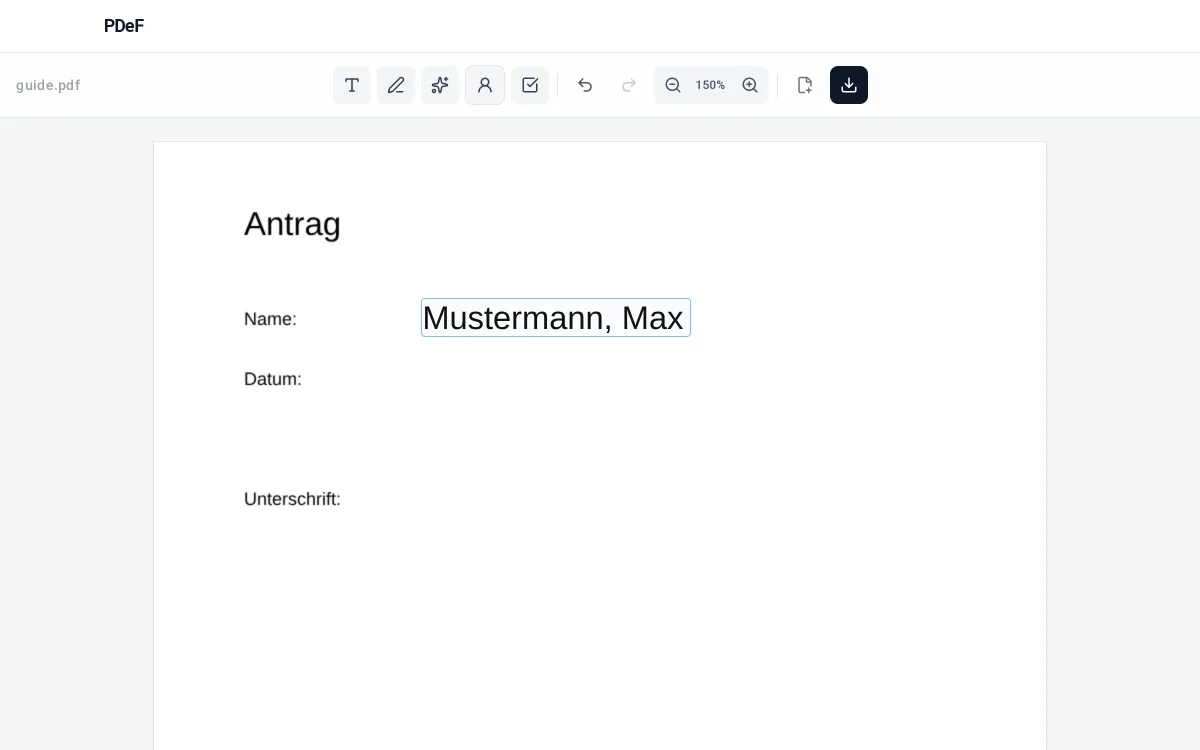
Pick the text tool in the toolbar and click the spot in the document where the text belongs. A field appears and you can type straight away. The font size adapts to the field automatically; colour and typeface can be changed at the top. Select part of the text to make just that piece bold, coloured or a different typeface, for example to highlight an important figure. For tables with several similar rows you can duplicate a filled field, or select several fields, copy them and paste them as a block instead of placing every row by hand.
3. Add ticks and crosses
For checkboxes pick the tick tool and click the box in the form. You can choose a tick, a cross or a dot, each adjustable in size and colour. On click the editor measures the printed box or circle and centres the mark inside it, even for the small boxes in tight tables.
4. Download the finished PDF
The download button builds the filled PDF on your device and saves it. There is no watermark and no page limit. The form layout stays exactly as it was, only your text, ticks and signature are added; afterwards you can email the document, print it or upload it to an online portal as usual.
Tips
- Recurring details (name, address, IBAN) can be stored once in the local profile: on PDFs with real form fields one click on „Fill from profile“ fills every recognised field.
- Ctrl and the mouse wheel, or the zoom buttons, enlarge small forms so you can click precisely.
- A common beginner mistake: a field is drawn too small and the text runs past the edge. Just click the field again and drag its corner to make it bigger, the text re-fits automatically.
- In multi-page documents with pages of different widths (say a landscape annex inside an otherwise portrait form) every page scales to the available width on its own, so no page runs off the screen.
Werbung
Frequently asked questions
Is filling in really free?
Yes. Filling, ticking, signing and downloading are free, without sign-up and without a watermark.
Is my file uploaded anywhere?
No. All processing happens locally in your browser. The PDF never leaves your device.
Does it work with scanned forms too?
Yes. Even when the PDF has no interactive fields you place text, ticks and a signature exactly where they belong with a click.
Can I fill it in on a phone?
Yes, the editor is built for smartphones. The signature can additionally be sent from your phone to the desktop via a QR code.
Can I move or correct a field afterwards?
Yes. Every placed field can be clicked and then moved, resized or deleted. To change the text, click into the field and type again; the font adapts automatically.
Is there a limit on pages or file size?
No. You can open multi-page documents and place as many fields as you like on every page. Because processing runs locally in the browser there is no server-side size limit and no watermark.
What if I have filled this form before?
The editor remembers locally in your browser how you last filled a form. Open the same file again and it offers to restore the saved fields. This only works for digital forms with the same structure, not for photos or scans, and the data stays on your device.
Do I need a printer to submit the form?
No. You can send the finished PDF by email or upload it to an online portal such as jobcenter.digital. Printing is only necessary if the office you submit to explicitly asks for paper.
Free, no account, nothing uploaded to a server
Fill a PDF now