Fill in Jobcenter forms on a computer: EKS, Anlagen and the renewal
Jobcenter forms (the Weiterbewilligungsantrag, the Anlage EKS for the self-employed, the Veränderungsmitteilung) are PDFs you can fill in entirely on a computer or phone: open the file in the browser editor, click into the form lines, type the entries, tick the boxes, sign, and save or print the finished PDF. With the EKS in particular, which is due every six months, that saves copying everything out by hand each time.
1. Get the form as a PDF
Download the form from jobcenter.digital or your Jobcenter's website, or scan or photograph the paper form you were sent. A scan can be filled in just as easily in the editor.
2. Open the PDF in the editor and fill the fields
Open the file in the PDeF editor. The official Anlage EKS is recognised automatically (Formular-Lotse): every important field is marked with a dashed outline, and a click shows a plain-language explanation of what belongs in it, from the BG number to the business income. Fields backed by real PDF form fields can additionally be filled with one click from your locally stored profile. On scanned forms you simply click into each line and type the entry.
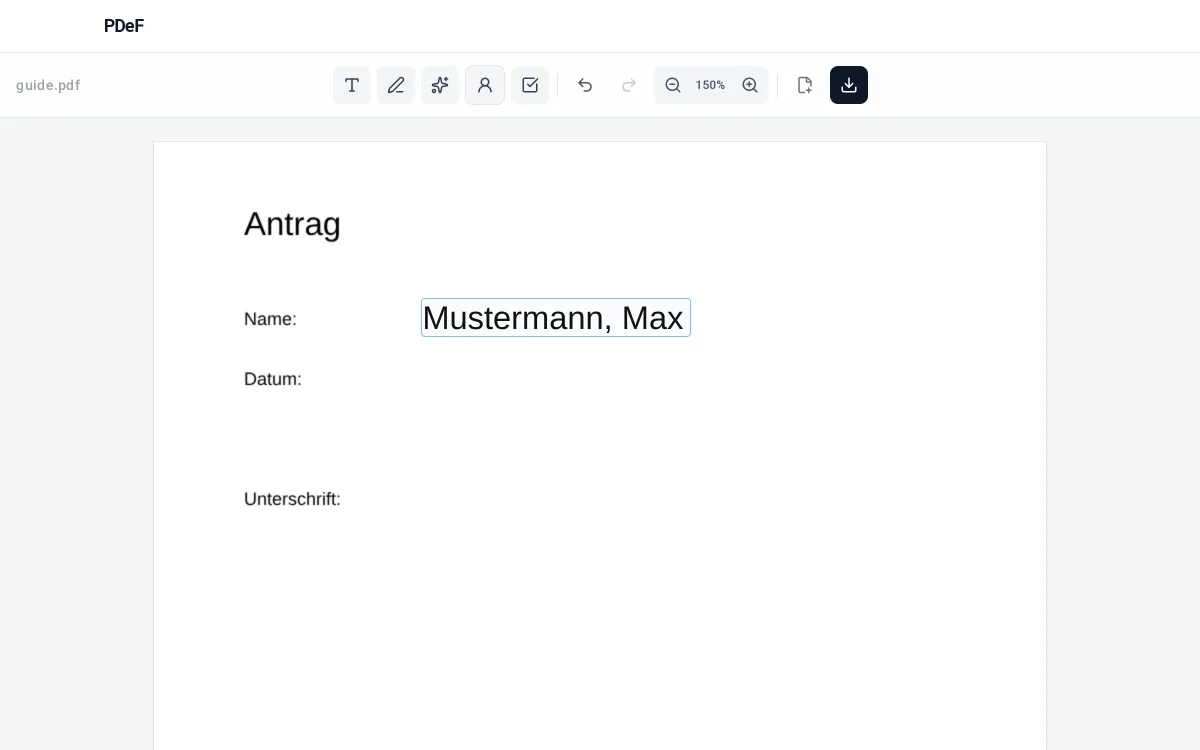
3. Do not forget the Kundennummer and the BG number
On every page that asks for them, enter your customer number and the number of your Bedarfsgemeinschaft (BG number). Both are printed at the top of the letters from your Jobcenter. Store them in the profile and they are at hand for the next form immediately.
4. Tick, sign, submit
Place ticks with the checkbox tool, sign with a drawn signature (also via QR code from your phone) and download the finished PDF. Depending on your Jobcenter you upload it through jobcenter.digital, send it by post or drop it in the letterbox.
Tips
- Formular-Lotse: download the official Anlage EKS from jobcenter.digital and open it in the editor. Every marked field gets an explanation in plain language, without officialese.
- Submit evidence as copies, not originals, unless the Jobcenter asks otherwise.
- Keep the filled PDF: for the next application you open it as a template and only have to update the figures.
Note, not legal advice: which submission route your Jobcenter accepts (upload, post, in person) and whether a handwritten signature is required is stated in the covering letter. When in doubt, ask your caseworker.
Werbung
Frequently asked questions
Does the Jobcenter accept forms filled in on a computer?
As a rule yes: what matters is that all entries are complete and the signature is there. Many Jobcenters now accept documents digitally through jobcenter.digital.
How do I fill in the Anlage EKS if I only have a scan?
Open the scan in the editor and click into each line to place text. The font size adapts to the field automatically, even in small table cells.
Do I have to retype my data every time?
No. Name, address, customer number and other details are stored once in the local profile in your browser. On PDF forms with real fields one click fills everything recognised.
Is my Jobcenter data safe here?
The PDF processing happens entirely locally in your browser, without upload. Your profile is likewise stored only on your device.
The table in the form is printed sideways, what now?
Some Jobcenter tables, for example in the Anlage EKS, are printed sideways. In the editor you rotate that page by 90 degrees with the rotate button, fill it in comfortably upright, and still download the PDF in its original orientation.
Can I copy the same entry into several fields at once?
Yes. You can select several fields together, copy them and paste them back as a group, for example recurring zeros or amounts in a monthly table. In table-heavy forms that saves a lot of typing.
Free, no account, nothing uploaded to a server
Fill a PDF now