Draw your signature on your phone and put it in the PDF
A signature drawn with a mouse rarely looks good. The fix: you fill the PDF in on the computer and draw the signature on your phone's touchscreen, with a finger or a stylus. The two are connected by a QR code, with no app to install and no sign-up. The signature appears in the document on the computer automatically and is deleted from the server immediately after the transfer. This is especially handy when you are filling a form on the bigger screen anyway but do not fancy a shaky mouse signature, or when the computer has no touchscreen at all.
1. Open the signature dialog
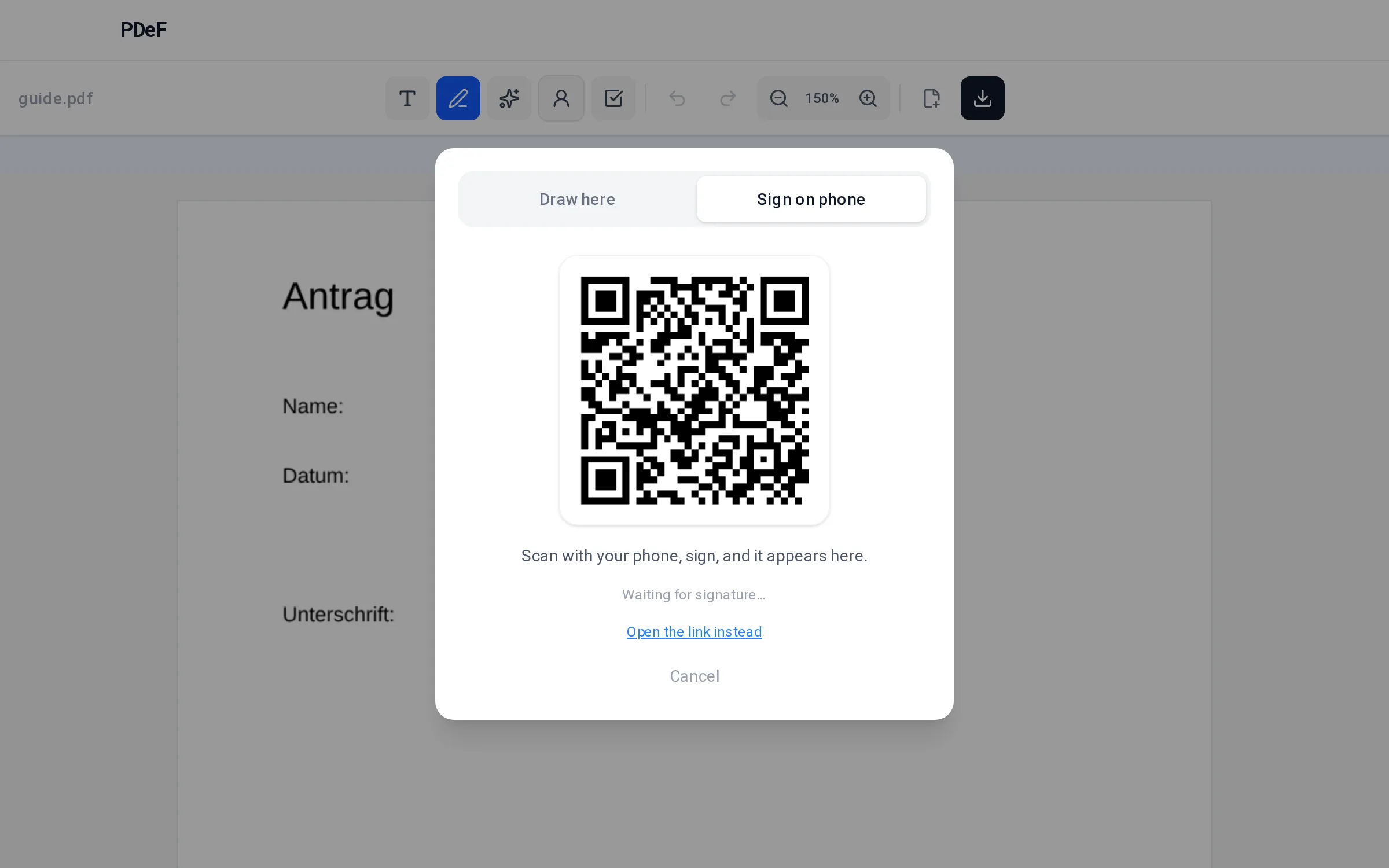
Open your PDF in the PDeF editor, pick the pen tool and click where the signature should sit. The dialog has two tabs: „Draw here“ for drawing with the mouse and „Sign on phone“ for the phone route. Switch to „Sign on phone“ as soon as you would rather sign with your finger.
2. Scan the QR code with your phone
Point the phone camera at the QR code; iPhone and Android recognise it directly in the camera app, no separate scanner app needed. A page with a drawing area opens, without sign-up and without installing anything. That page works like any normal website, whether or not your phone is on the same Wi-Fi as the computer.
3. Sign on the touchscreen
Draw the signature with your finger or a stylus, and take your time: „Clear“ resets the area so you can start over as often as you like until you are happy. „Done“ sends the signature; the computer picks it up in the background, you do not have to confirm anything extra.
4. Place the signature in the document
On the computer the signature appears at the chosen spot automatically, transparent and in the right aspect ratio, with no white box around it. You can still move it and resize it, then download the finished PDF as usual.
Tips
- The browser remembers the signature you drew locally: in the next document you insert it with one click, without reaching for your phone again.
- Alternatively you can upload a photo of your signature on paper; the editor removes the background automatically so only the strokes remain.
- For a clean signature it helps to hold the phone in landscape and use the whole drawing area rather than scribbling into a corner: the larger the original drawing, the smoother it looks once scaled down in the document.
Werbung
Frequently asked questions
Do I need an app on my phone?
No. The QR code opens a normal web page in the phone browser; you draw directly on the drawing area there.
Is my signature stored on a server?
Only for the transfer, for a few seconds: after handover to your computer the signature image is deleted immediately, and uncollected signatures after 30 minutes at the latest.
My computer and phone are on different networks, does it still work?
Yes. The connection runs over the website, not the local network; Wi-Fi and mobile data work the same.
Is such a signature valid?
It counts as a simple electronic signature (SES) and is sufficient for many everyday documents. Details are in our guide on signing PDFs.
What if the QR code does not scan?
Hold the phone camera steady and make sure there is enough light; iPhone and Android read the code straight in the camera app. If it still fails, type the address shown in the dialog into the phone browser by hand.
Do I have to draw the signature every time?
No. The signature you drew stays stored locally in the browser, so in the next document you insert it with one click without reaching for your phone.
Can I shrink or move the signature afterwards?
Yes. After the transfer the signature behaves like any other field in the editor: click it, drag a corner to scale it, or place it somewhere else before you download the PDF.
Does it work if I need several signatures in one document?
Yes. You can repeat the process for every spot that needs a signature, for example when a form asks for both the applicant's signature and that of a second person.
Free, no account, nothing uploaded to a server
Fill a PDF now